 Lunchbox Blog
How to start a group

A group is one lunchbox you share with your family or your closest friends. Everyone writes, everyone reads, and you always see the newest note from each person.


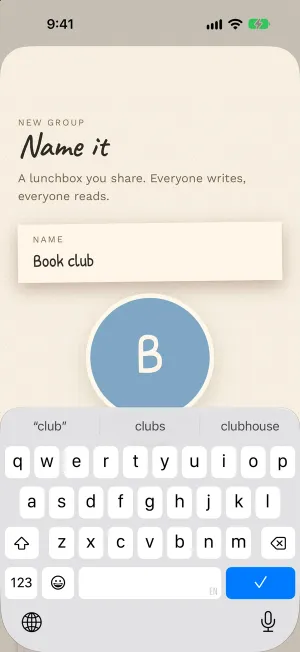
To start one, tap the little note at the top of the Lunchbox tab and pick Start a group. Give it a name, choose who to invite, and tap Done.
New to Lunchbox Notes? Start with what a lunchbox note is.
Start a group
Give your group a name and, if you like, a photo. Then pick the friends you would like in it.
Join a group
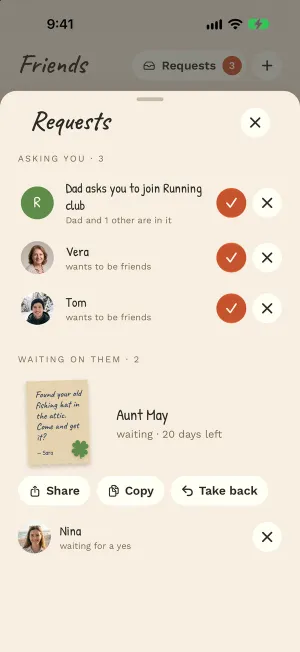
When someone invites you, the invite waits in Requests on the Friends tab. Tap the tick to join.
Bring your kid along
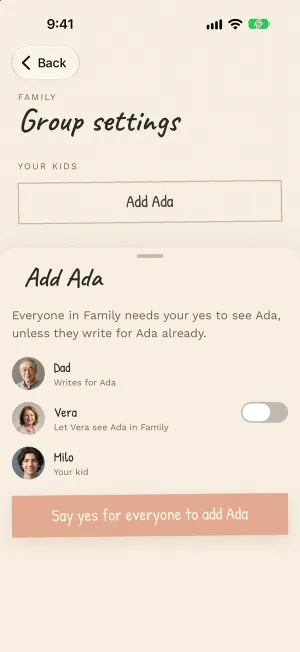
If you look after a kid, you can add them to a group. You add them yourself, and you say who in the group gets to see them.
Read everyone’s notes
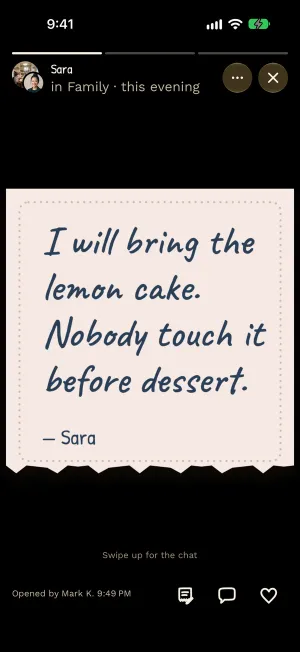
Your group gets its own circle on Home. Tap it, and the notes are there, one on top and the others behind it. Tap the side of the note to go from one person to the next.
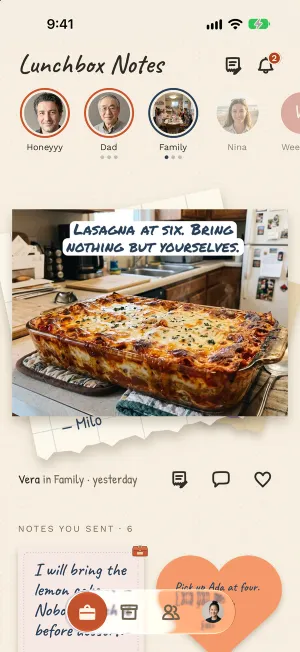
To write, tap Write in the group. Your new note takes the place of your last one, and the old one goes into your memory box.
Every note in the group has its own little chat, and everyone can react. Here is how reactions work.
A covered note opens for everyone
You can hide a group note under a cover too. The first person to open it opens it for everyone. More in how to cover a note.
Keep the group on your Home Screen
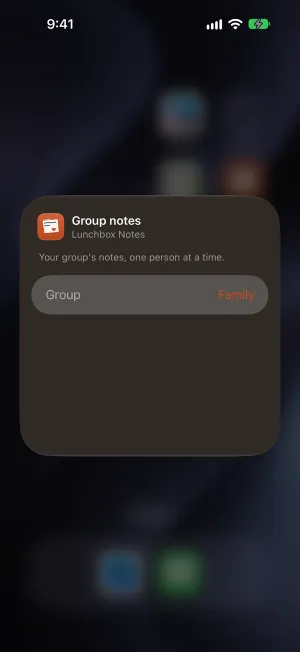
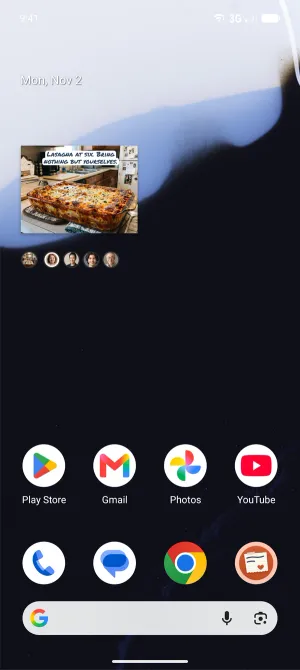
The Group notes widget shows your group’s notes right on your Home Screen, one person at a time. Tap the side of it to see the next one.

On iPhone, hold an empty spot on your Home Screen, tap the brush at the top, then Add Widget. Pick Lunchbox Notes, then Group notes. To choose the group, hold the widget and tap Edit Widget. Add to Home Screen, under the group’s notes, shows these steps with the video too.
On Android, open the group and tap Add to Home Screen, under the notes.
A few to send your group
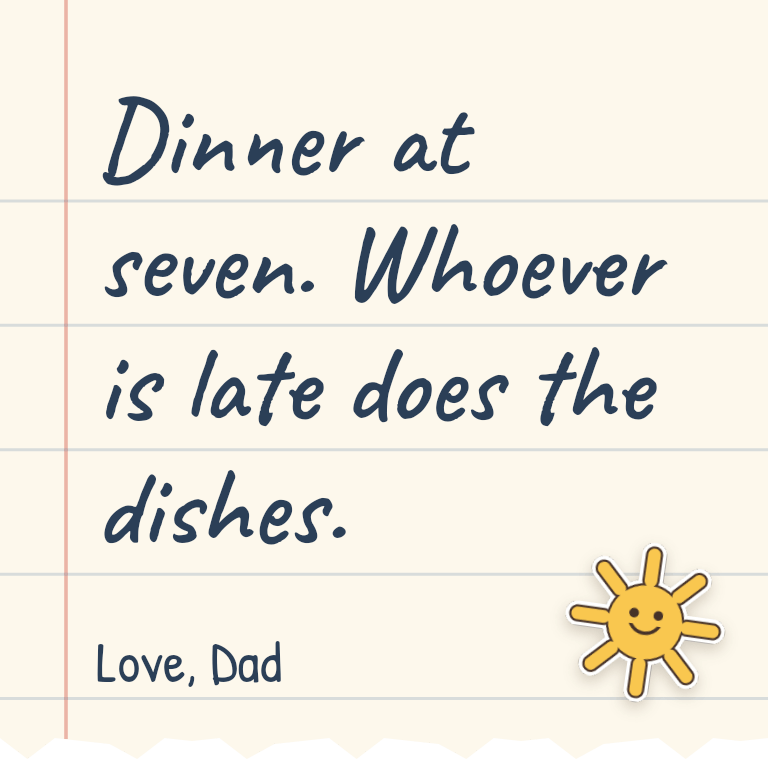
- “Soup at mine on Sunday. Everyone bring one thing.”
- “Who has the big umbrella? Asking for a friend. The friend is me.”
- “Someone lost a tooth. The tooth fairy is asking for change.”
- “Same time next week. I’ll bring the cake.”
Try it now: Lunchbox Notes is in beta.
iPhone opens TestFlight, Apple’s app for trying apps before they’re out. Android opens Google Play.
Rather wait for the App Store and Google Play? Get an email when it’s out.