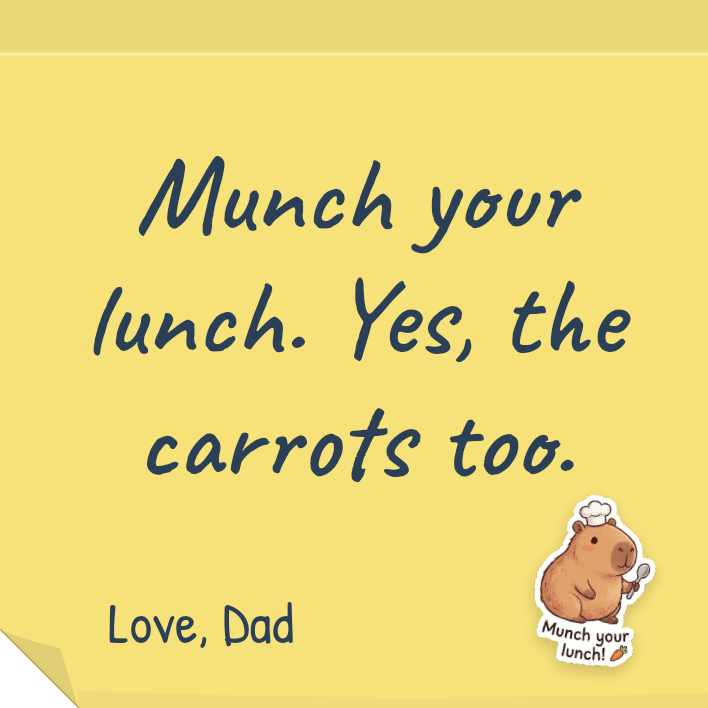
 Lunchbox Blog
How to add sticker packs

A sticker pack is a set of stickers around one idea: a capybara, a puppy, a frog, autumn leaves. Add one, and its stickers are there on every note you write.

New to Lunchbox Notes? Start with what a lunchbox note is.
Your stickers
Tap Stickers while you write. Your packs sit along the bottom. Tap one to open it, then tap a sticker to put it on your note.
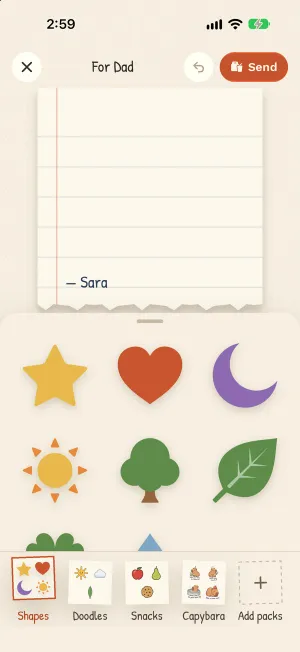
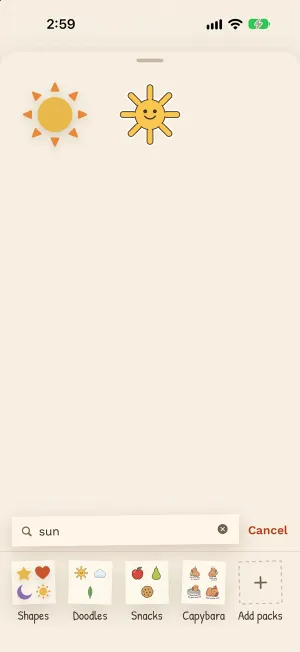
Looking for something? Pull the sheet up and search all your stickers at once.
Add a pack
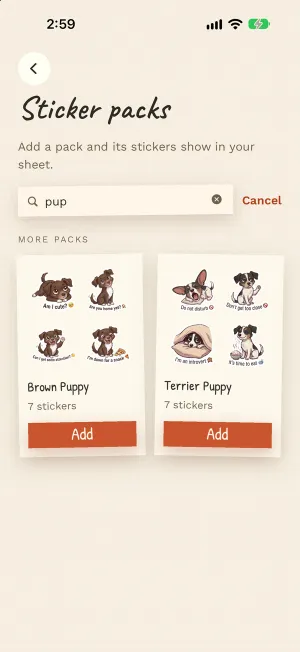
Scroll to the end of the row and tap Add packs. Find one you like and tap Add. It is in your stickers straight away.
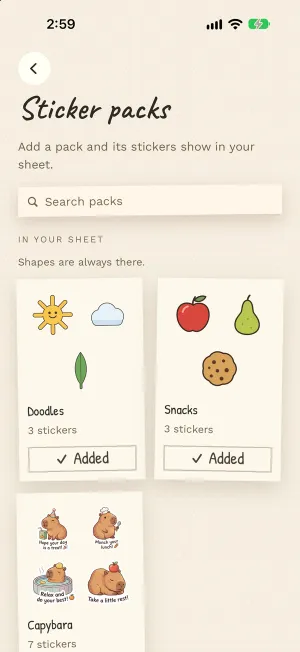
Take one out
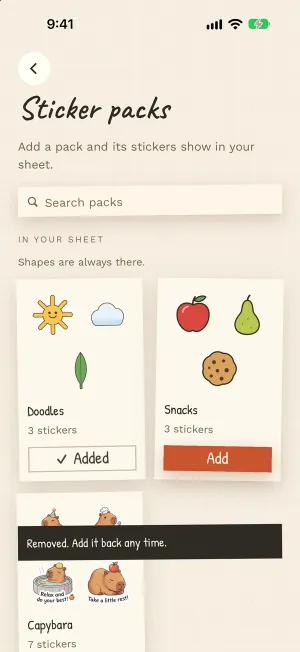
Tap Added to take a pack out. Notes you already sent keep their stickers, and you can add the pack back any time.
A few to try
- With a puppy: “Dinner at six. Someone is waiting by the door.”
- With a maple leaf: “Kick through the leaves on the way home.”
- With a bunny and a book: “One more page, then the park.”
- With a capybara: “There is a cookie under the napkin.”
Try it now: Lunchbox Notes is in beta.
iPhone opens TestFlight, Apple’s app for trying apps before they’re out. Android opens Google Play.
Rather wait for the App Store and Google Play? Get an email when it’s out.